
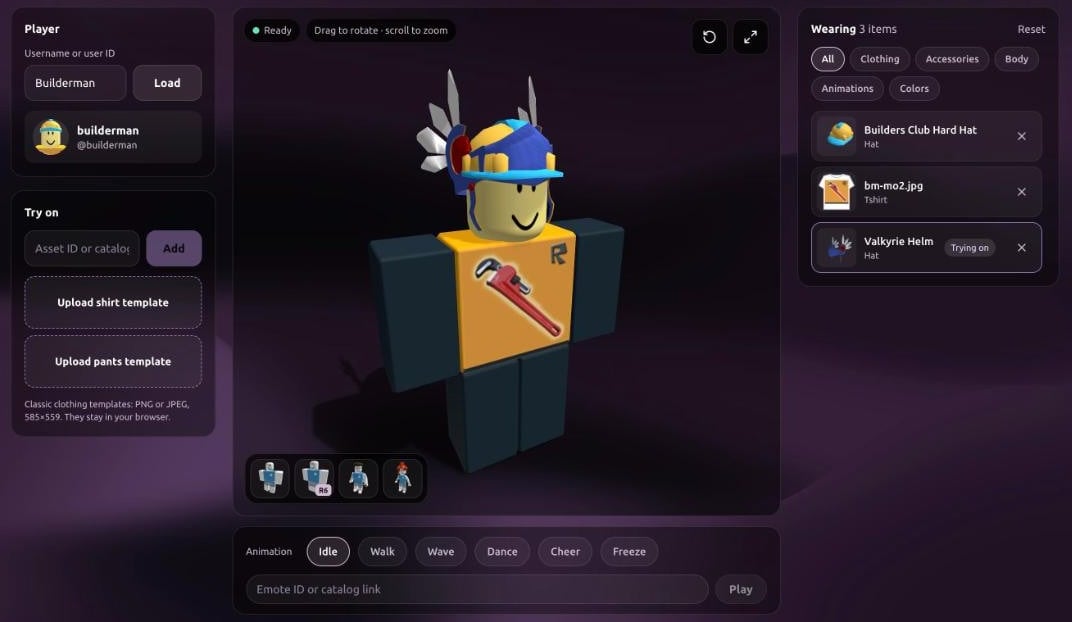
Loading an avatar
- A player: type a username or user ID under Player and press Load. Their current avatar appears on the stage.
- A preset body: pick one of the four bodies at the bottom left of the stage: Blocky (R15), Blocky R6, Man or Woman.
Trying things on
Under Try on, paste an asset ID, a catalog link or a bundle link and press Add. Only public catalog items and bundles work. Items you add are marked Trying on in the Wearing list.Your own clothing templates
Press Upload shirt template or Upload pants template to see a classic clothing template on the avatar before you upload it to Roblox. Templates are PNG or JPEG, 585×559.Your templates never leave your browser. Renders that use one are drawn on your device, not on our servers.
What they’re wearing
The Wearing panel lists everything on the avatar. Filter it by Clothing, Accessories, Body or Animations, and press the × next to an item to take it off. Reset puts the avatar back the way it loaded.Body colors
Open Colors to repaint the avatar. Pick what to paint (the whole body, or the head, torso, an arm or a leg), then a Roblox color or a Custom color. Undo colors goes back to the original colors.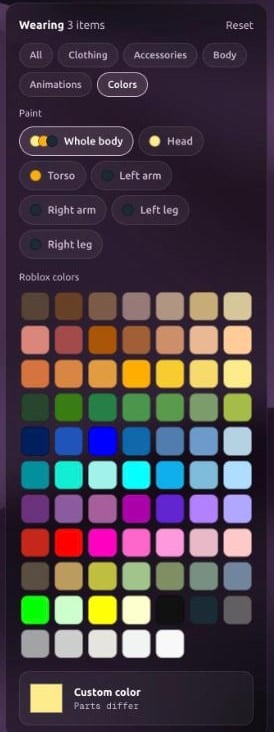
Animations and emotes
Under the stage, play Idle, Walk, Wave, Dance or Cheer, or Freeze the avatar mid-animation. To play any emote, paste its ID or catalog link and press Play.Exporting a 2D image
Press Render 2D image at the top of the page.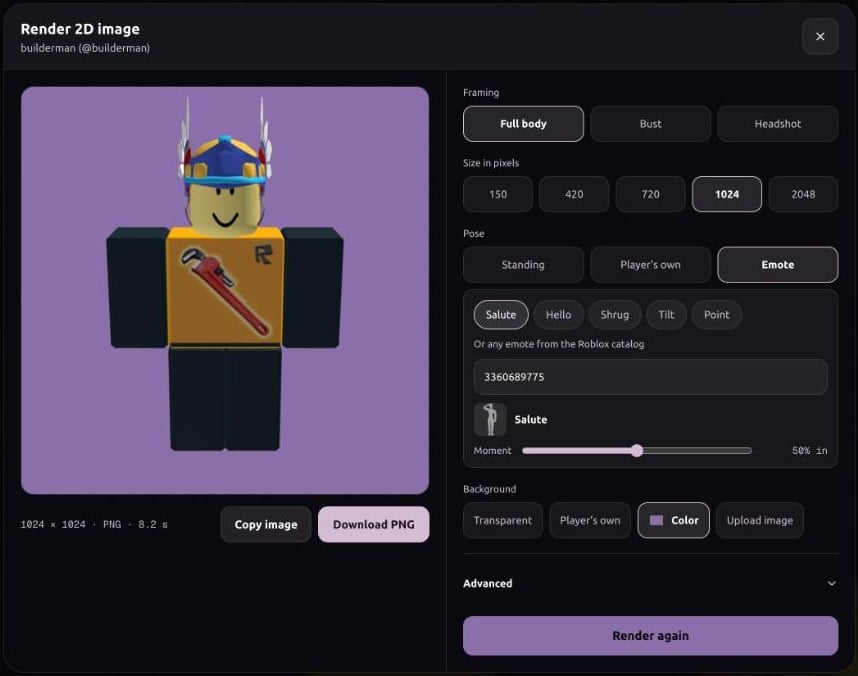
Press Copy image to copy it, or Download PNG / Download WEBP to save it. Change any option and press Render again.
Limits
- 12 renders per minute.
- Sometimes Cloudflare asks you to confirm you’re human. One check lasts 30 minutes.
- Nothing is saved: there are no share links or saved outfits. A render without your own templates is cached on our server for up to 24 hours.